You have a WordPress website and need to hire an intern, a freelancer, or a full-time employee.
The usual reflex?
Sign up for an online ATS, create an account, pay a monthly subscription, and juggle between multiple tools.
But if your site already runs on WordPress, you actually have everything you need to manage recruitment internally.
Here’s how to set up a complete application management system without ever leaving your dashboard.
Sommaire
- Why manage recruitment from WordPress?
- What you need
- Step 1 — Install the plugin
- Step 2 — Configure the basic settings
- Step 3 — Publish your first job listings
- Step 4 — Display your job board
- Step 5 — Set up the application form
- Step 6 — Manage applications from the recruiter dashboard
- Step 7 — Automatic emails
- What you get in the end
- How much does a SaaS ATS really cost over 3 years?
- Going further
- FAQ
- 5 best practices for writing effective job listings
- What’s next for WP ATS Jobs Manager?
- Conclusion
Why manage recruitment from WordPress?
Most SaaS HR tools like Workable, Recruitee, or Teamtailor are built for dedicated HR teams.
They’re powerful but they also:
- cost between €50 and €200 per month
- store your candidate data on third-party servers
- rarely integrate seamlessly with your existing website
For a freelancer hiring twice a year, a small business, or a WordPress agency, that’s overkill.
Managing recruitment directly from WordPress gives you three clear advantages:
- Everything is centralized in one place
- CVs are stored on your own server
- No monthly subscription you pay once
What you need
To turn WordPress into a recruitment tool, you need an ATS plugin.
In this tutorial, we use WP ATS Jobs Manager : a one-time payment plugin, compatible with all standard WordPress themes (Gutenberg, Elementor, Divi, Blocksy, Kadence, Astra).
Technical requirements:
- WordPress 6.0+
- PHP 7.4+
- No external service required
Step 1 — Install the plugin
After purchase, you receive a .zip file.
Installation is standard:
Go to Plugins > Add New > Upload Plugin, select the .zip file, click “Install Now”, then “Activate”.
Once activated, a new menu JP Jobs appears in your WordPress dashboard.
Step 2 — Configure the basic settings
Go to JP Jobs > Settings.
You can configure:
- Admin email for application notifications
- Job listing slug (e.g. /jobs/)
- Number of listings per page
- Maximum CV upload size
- GDPR consent text
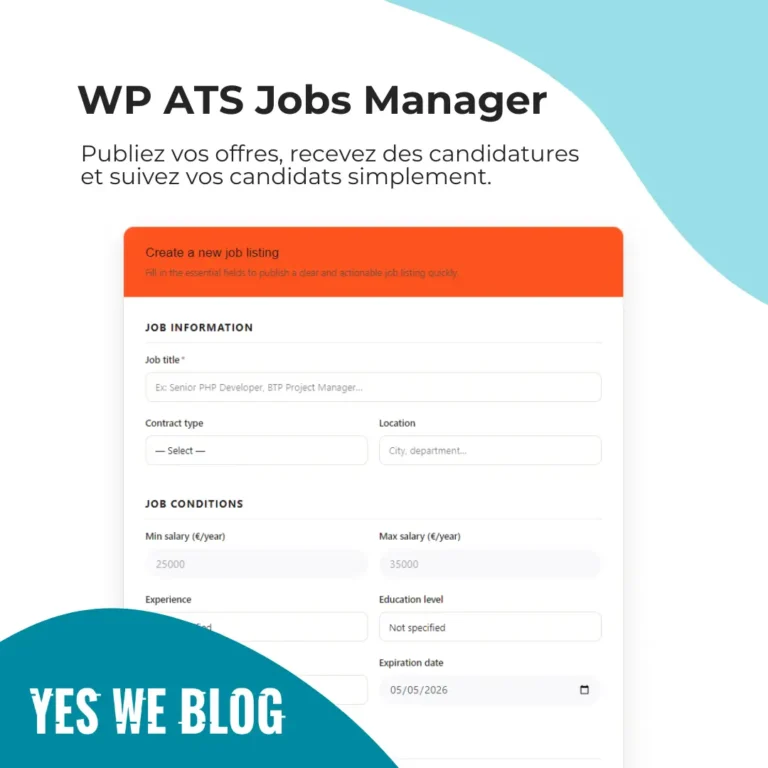
The plugin automatically creates the required pages: job listings, application form, recruiter dashboard.
Check them under JP Jobs > Settings > Pages.
Step 3 — Publish your first job listings
Go to JP Jobs > Jobs > Add New.
For each job, you define:
- Job title
- Job description (Gutenberg editor)
- Candidate profile
- Contract type (full-time, freelance, etc.)
- Location
- Salary (min/max, yearly/monthly/hourly)
- Work mode (on-site, hybrid, remote)
- Experience and education level
- Benefits
- Expiration date
Each job automatically generates JSON-LD JobPosting schema (schema.org), making your listings eligible for Google Jobs rich results — no setup required.
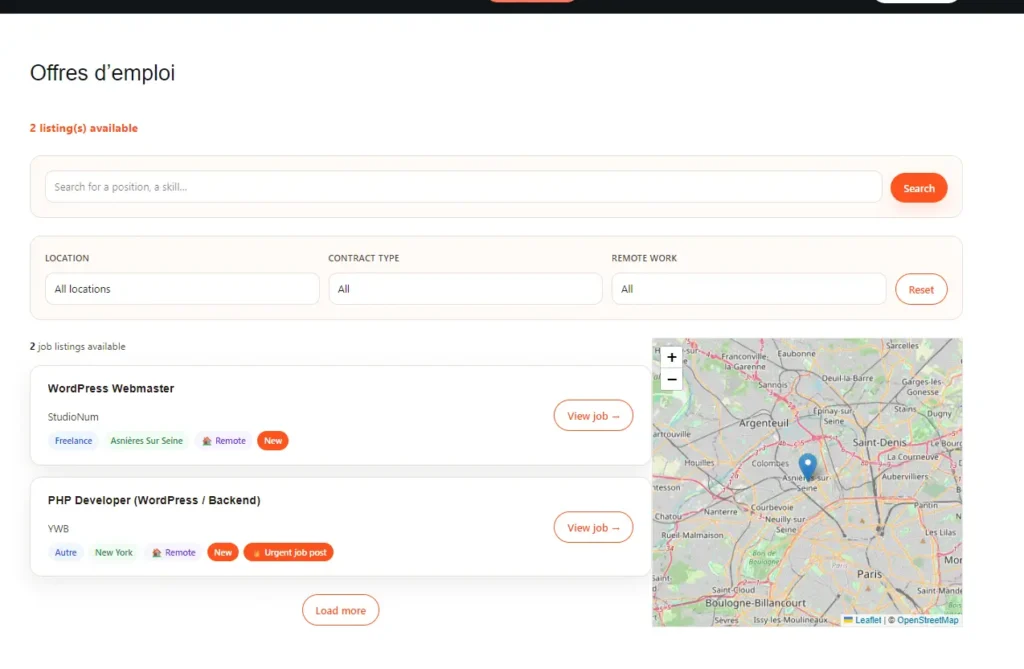
Step 4 — Display your job board
The plugin uses shortcodes.
Add these to any page:
[jp_filters]
[jp_results]
[jp_filters]displays search and filters[jp_results]displays job listings
Both work with AJAX — results update instantly without page reload.
Step 5 — Set up the application form
Add this shortcode:
[jp_apply_form]
Candidates can:
- submit their information
- upload a CV (PDF)
- give GDPR consent
CVs are stored in a protected directory on your server, not publicly accessible.
You can add custom fields via JP Jobs > Settings > Candidate Fields, without coding.
Step 6 — Manage applications from the recruiter dashboard
Add this shortcode to a protected page:
[jp_recruiter_dashboard]
From this frontend dashboard, you can:
- View all applications by job
- Change application status: New, Read, Contacted, Interview, Hired, Rejected
- Download CVs
- Read cover letters
- Export applications as CSV
Each status update automatically triggers an email to the candidate.
Step 7 — Automatic emails
Three types of emails are sent:
- Confirmation email to the candidate
- Notification email to the recruiter
- Status update email to the candidate
All templates are customizable.
What you get in the end
A complete recruitment system inside WordPress:
- A job board with filters
- A secure application form (GDPR compliant)
- A recruiter dashboard
- Automatic emails
- SEO-ready job listings (JobPosting schema)
All without subscriptions, third-party data storage, or external tools.
How much does a SaaS ATS really cost over 3 years?
Most people look at the monthly price : not the long-term cost.
Here’s the reality:
| Tool | Monthly cost | 3-year cost |
|---|---|---|
| Workable | ~€189 | ~€6,800 |
| Recruitee | ~€99 | ~€3,564 |
| Teamtailor | ~€150 | ~€5,400 |
| WP ATS Jobs Manager | €0/month | €79 (one-time) |
And this doesn’t include:
- price increases
- locked features
- migration costs
For occasional hiring, the difference is hard to justify.
Going further
You can allow external recruiters to publish jobs via the frontend dashboard.
WP ATS Jobs Manager is available as a one-time purchase.
Compatible with WordPress 6.0+, PHP 7.4+, all major themes.
Available in English and French.
FAQ
Does it work with my theme?
Yes. It uses WordPress’ native the_content filter, making it compatible with most themes.
Where is candidate data stored?
On your own server. No third-party storage.
Is it GDPR compliant?
Yes. Consent is required and stored. CVs are protected.
What happens when a job expires?
It stops accepting applications automatically via WordPress cron.
Are updates included?
Yes. One-time purchase, no subscription.
5 best practices for writing effective job listings
- Start with context, not requirements
Explain who you are and why the role exists. - Be transparent about salary
Listings with salary get significantly more applications. - Separate must-have vs nice-to-have
Avoid scaring away good candidates. - Explain the hiring process
Be clear about steps and timelines. - Set a realistic expiration date
Outdated listings hurt your credibility.
What’s next for WP ATS Jobs Manager?
The plugin will evolve through add-ons.
Recruitment needs vary — so flexibility matters.
Planned features include:
- Recruiter notes on applications
- Prevent duplicate applications
- Advanced candidate tracking
Some add-ons will be free, others premium.
Conclusion
Managing recruitment from WordPress is not complicated.
With the right setup, you can launch:
- a job board
- a secure application form
- a candidate management system
in less than an hour.
No subscription. No external tools. No data leakage.
That’s exactly what WP ATS Jobs Manager offers:
a simple, reliable solution for teams that don’t need a full HR department to hire effectively.
Want to understand first why hosting your listings on WordPress beats paying for job boards every month? Read the full breakdown: the alternative to paid job boards.
👉 Discover WP ATS Jobs Manager
If you are also considering a theme-based approach, check out this review of Superio, a WordPress job board theme.