Tooltips are these small pop-up bubbles that appear when you hover over a word, phrase, or icon. They provide a definition, an explanation, or additional context without cluttering the layout. On a WordPress website, they are especially useful for:
- providing definitions (glossary)
- explaining acronyms
- adding visual context
- offering quick extra information
- improving the readability of technical or educational content
Here’s everything you need to know to use and implement tooltips in WordPress.
What Is a Tooltip?
A tooltip is a small information box that appears automatically:
- when you hover an element on a computer,
- or when you tap on mobile for some compatible solutions.
A tooltip can contain:
- text
- a link
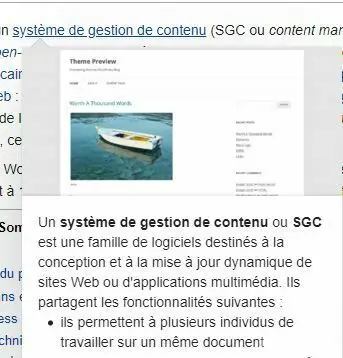
- sometimes an image or thumbnail
- a short call to action
They’re very common on websites like Wikipedia, where hovering a link shows a short preview of the corresponding page.
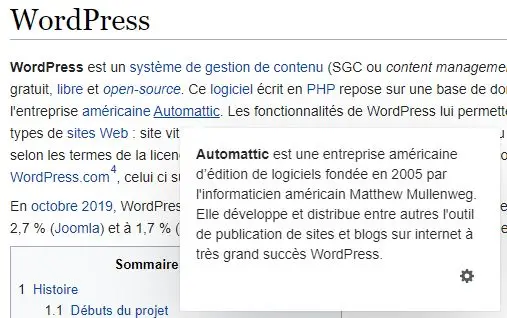
Here is an oter example of a tooltip wit text only on Wikipedia :
Why Use Tooltips?
Tooltips improve:
- clarity (definitions, abbreviations, acronyms)
- reading flow (no need to scroll to a glossary)
- user experience (extra info that stays unobtrusive)
- credibility for technical or educational content
They are particularly useful for specialized blogs, corporate sites, training platforms, or intranets with a lot of industry-specific terms.
Tooltips on Mobile Devices
Most tooltip systems rely on hover, which doesn’t exist on smartphones or tablets. As a result:
- on desktop: the tooltip appears on hover
- on mobile: the tooltip may be disabled or replaced by a standard link
Depending on the solution, some plugins adapt the behavior for mobile users by triggering tooltips on tap. Others simply disable them for touch screens.
Adding Tooltips to WordPress
Option 1: Use a Plugin (the easiest way)
If you want to add tooltips without touching any code, the simplest approach is to use a plugin. In the WordPress plugin directory, you’ll find several reliable “tooltip” or “glossary” plugins. They generally allow you to:
- create terms and definitions
- automatically display a tooltip when a term appears in an article
- manually insert tooltips
- enable or disable an optional Glossary page
A free plugin is usually enough for text-only tooltips. Premium versions sometimes add image support, advanced layouts, or additional customization options.
Option 2: Add a Tooltip Using Code (for advanced users)
If your needs are simple, you can create a tooltip using plain HTML and CSS. For example:
HTML:
<span class="tooltip">Word
  <span class="tooltip-text">This is where the explanation appears.</span>
</span>
CSS:
.tooltip {
  position: relative;
  cursor: help;
}

.tooltip-text {
  visibility: hidden;
  opacity: 0;
  position: absolute;
  left: 0;
  top: 120%;
  background: #333;
  color: #fff;
  padding: 6px 10px;
  border-radius: 4px;
  transition: 0.2s;
  z-index: 999;
  width: max-content;
  max-width: 250px;
}

.tooltip:hover .tooltip-text {
  visibility: visible;
  opacity: 1;
}
This snippet displays a simple tooltip on hover, without any plugin.
Option 3: Use JavaScript for Advanced Tooltips
If you want animation, precise positioning, mobile-friendly behavior, or advanced options, JavaScript libraries such as Tippy.js or Popper.js are ideal.
They allow:
- better positioning
- smooth animations
- touch support
- custom HTML content
This requires a bit more setup but offers the highest level of flexibility.
Which Solution Should You Choose?
| Need | Recommended Solution |
|---|---|
| Simple tooltips on a blog | Free plugin |
| Glossary + automatic detection of terms | Dedicated glossary plugin |
| Fully custom visual integration | Custom HTML/CSS |
| Advanced, animated tooltips | JavaScript (Tippy.js, Popper.js) |
Conclusion
Adding tooltips to WordPress is straightforward. You don’t need technical skills if you use a plugin, and even for custom needs, a small HTML/CSS snippet is enough.
If you want clean, efficient, and mobile-friendly tooltips integrated into your WordPress site, feel free to reach out, I can set them up for you quickly.
See you soon on YesWeBlog!
FAQ – WordPress Tooltips
Most tooltip systems rely on mouse hover, which doesn’t exist on mobile. Depending on the plugin or method used, tooltips may be disabled on touch screens or triggered by a tap instead. Compatibility varies from one solution to another.
Yes. Some tooltip plugins support rich content and allow you to display text, images, icons, or even links and buttons. If you use a simple HTML/CSS snippet, the content will usually need to remain text-only.
Not necessarily. For simple text tooltips, a small amount of HTML and CSS is enough. If you want automatic glossary detection, custom styling, or mobile-friendly behavior, a dedicated plugin is the easiest and most flexible option.
Related reading: 10 reasons to use Gutenberg WordPress blocks, and choosing your WordPress page builder.